Many gamers, especially those balancing jobs, families, and life, often wonder if their beloved Steam games can be enjoyed without an internet connection. In today's always-on world, it's easy to assume online access is essential for everything, but that's not always the case for PC gaming. This comprehensive guide will navigate the ins and outs of Steam's Offline Mode, providing practical solutions and expert tips for uninterrupted gaming sessions, whether you're traveling, facing internet outages, or simply want to disconnect from the digital noise. We'll cover how to activate it, what limitations to expect, and which game types are best suited for offline play. Understanding how to leverage Steam's offline capabilities ensures your relaxation and fun aren't held hostage by a spotty Wi-Fi signal or data caps. Learn to optimize your gaming experience for maximum enjoyment and convenience, ensuring your precious limited gaming time is always productive and entertaining. Discover the freedom of offline play and keep the fun going, anytime, anywhere, without hassle.
How can I ensure my Steam games are ready for offline travel?
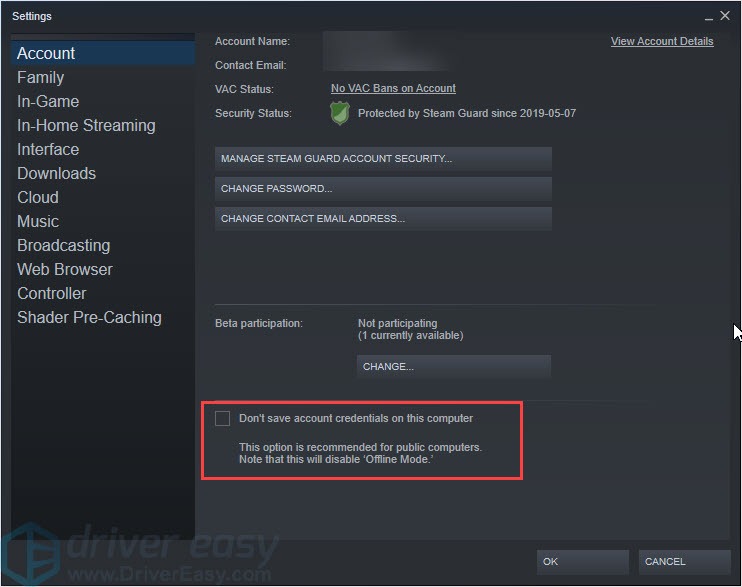
To prepare your Steam library for travel or periods without internet, it's crucial to launch each game you intend to play at least once while online. This step allows Steam to verify game files, download any pending updates, and activate any necessary DRM. Ensure Steam is set to remember your login credentials and check the "Don't save account credentials on this computer" box is *unchecked* in Steam settings. Before disconnecting, put Steam into Offline Mode manually via "Steam" then "Go Offline..." in the client menu. This proactive approach helps prevent startup issues when you're far from a Wi-Fi signal, letting you unwind with your favorite titles.
What types of Steam games are truly ideal for offline play?
Single-player story-driven games, classic RPGs, strategy games, puzzle games, and many indie titles are perfect for offline play. Think of games like The Witcher 3, Stardew Valley, or Portal 2. These games typically don't rely on constant server communication for core gameplay. Multiplayer-focused games, live-service titles, or games with always-online DRM, even if they have single-player modes, often won't function or will have severely limited functionality without an active internet connection. Prioritize games designed for solo progression for the best offline experience.
Why might a Steam game fail to launch in Offline Mode, even after I've played it online?
Several factors can cause a game to fail in Offline Mode. The most common issues include pending game updates that prevent launch until downloaded, third-party DRM (like Denuvo or specific launchers) requiring an online check, or an incomplete initial online launch for verification. Sometimes, Steam's client itself might need a fresh online authentication if it hasn't connected recently. Always ensure Steam is fully updated, launch the game online at least once (and play for a few minutes), and disable any background launchers or DRM that might interfere before attempting offline play.
Do Steam achievements and save data sync properly when I play offline and then reconnect?
Yes, generally. When you play games in Steam Offline Mode, achievements you earn and game progress you make are usually stored locally on your PC. The next time you bring Steam back online, the client will automatically sync this local data with Steam Cloud, updating your achievement list and uploading your latest save files. This seamless synchronization ensures that your offline progress isn't lost and is available across devices if you use Steam Cloud enabled games. However, always double-check specific game support for cloud saves.
Can I download game updates in Steam's Offline Mode?
No, downloading game updates requires an active internet connection. Steam's Offline Mode is designed to allow you to *play* installed games without connectivity, not to manage downloads or updates. If a game has a pending update, you will need to reconnect to the internet, allow Steam to download and install the update, and then potentially launch the game once online before you can successfully play it offline again. It's a good practice to update your games regularly when you have internet access.
How often do I need to go online to maintain Steam's Offline Mode functionality?
While there isn't a strict official timeframe, it's recommended to go online with Steam periodically, perhaps once every few weeks, to refresh your client's authentication. This helps prevent issues where Steam might insist on an online connection for verification. This also ensures your games and the Steam client itself are up-to-date, minimizing potential bugs or errors that could interrupt your offline gaming sessions. A brief online check-in keeps everything running smoothly.
Is it possible to play online-only games offline via any workaround?
Unfortunately, no. Games designed with a fundamental requirement for constant online connectivity, such as massively multiplayer online (MMO) games, live-service titles (like Destiny 2 or Helldivers 2), or many competitive multiplayer games, cannot be played offline. These games rely on server-side processing for gameplay, progression, and anti-cheat measures. There are no legitimate workarounds to bypass these fundamental requirements, as their core design necessitates an internet connection for any functionality.
Life for the average gamer in 2026 is a juggling act. Between work, family, and carving out precious moments for relaxation, you need your gaming sessions to be reliable. Nothing is more frustrating than settling in for an hour of immersive gameplay, only for your internet to flicker, leaving you staring at an error message. Many of us, part of the 87% of US gamers who play regularly, spending upwards of 10 hours a week, rely on gaming as a vital stress reliever. But what happens when that internet connection isn't available? This leads to the critical question: can Steam games play offline? The good news is, for many titles, absolutely! Understanding Steam's Offline Mode is a game-changer for anyone who values uninterrupted play, whether you're traveling, dealing with a spotty connection, or just want to minimize distractions.
This comprehensive guide is designed to empower you, the busy gamer, with all the knowledge needed to confidently enjoy your Steam library without an active internet connection. We'll cover everything from setup to troubleshooting, ensuring your hard-earned gaming time is never wasted. Forget the hype and focus on practical solutions that genuinely enhance your gaming experience. Let's dive in and unlock the full potential of your Steam library, even when the Wi-Fi says no.
Can Steam Games Truly Play Offline?
Yes, many Steam games can absolutely be played offline, but there are some essential prerequisites and limitations to understand. Steam's Offline Mode allows you to launch and enjoy most of your single-player titles without an active internet connection after an initial online setup. This feature is a lifesaver for commuters, travelers, or anyone experiencing a temporary internet outage, ensuring your favorite adventures are always accessible.
To ensure smooth offline play, you generally need to:
- Launch the Steam client while online at least once.
- Log in and ensure Steam is set to remember your password.
- Launch each game you intend to play offline at least once while online to verify game files and download updates.
- Manually switch Steam to Offline Mode before disconnecting from the internet.
Without these steps, Steam might struggle to verify your game ownership or launch the game, leading to frustration. It's all about preparation, much like planning your weekly gaming schedule around family commitments and work deadlines.
How Do I Prepare My Steam Library for Offline Mode?
Preparing your Steam library for offline access is a crucial pre-emptive strike against internet woes. This isn't just about clicking a button; it involves a few intentional steps to ensure your games are ready when you are, especially for those limited gaming windows.
Here's a step-by-step guide:
- Go Online and Update Everything: First and foremost, ensure your PC is connected to the internet. Open Steam and let it download any pending client updates. Then, check for game updates for every title you plan to play offline. Right-click a game in your library, go to Properties > Updates, and make sure it's set to
Steam Offline Mode setup and benefits, Game compatibility for offline play, Troubleshooting common offline issues, Preparing your Steam library for no internet, Enjoying single-player experiences without interruption.
35#1 Gallery can steam games play offline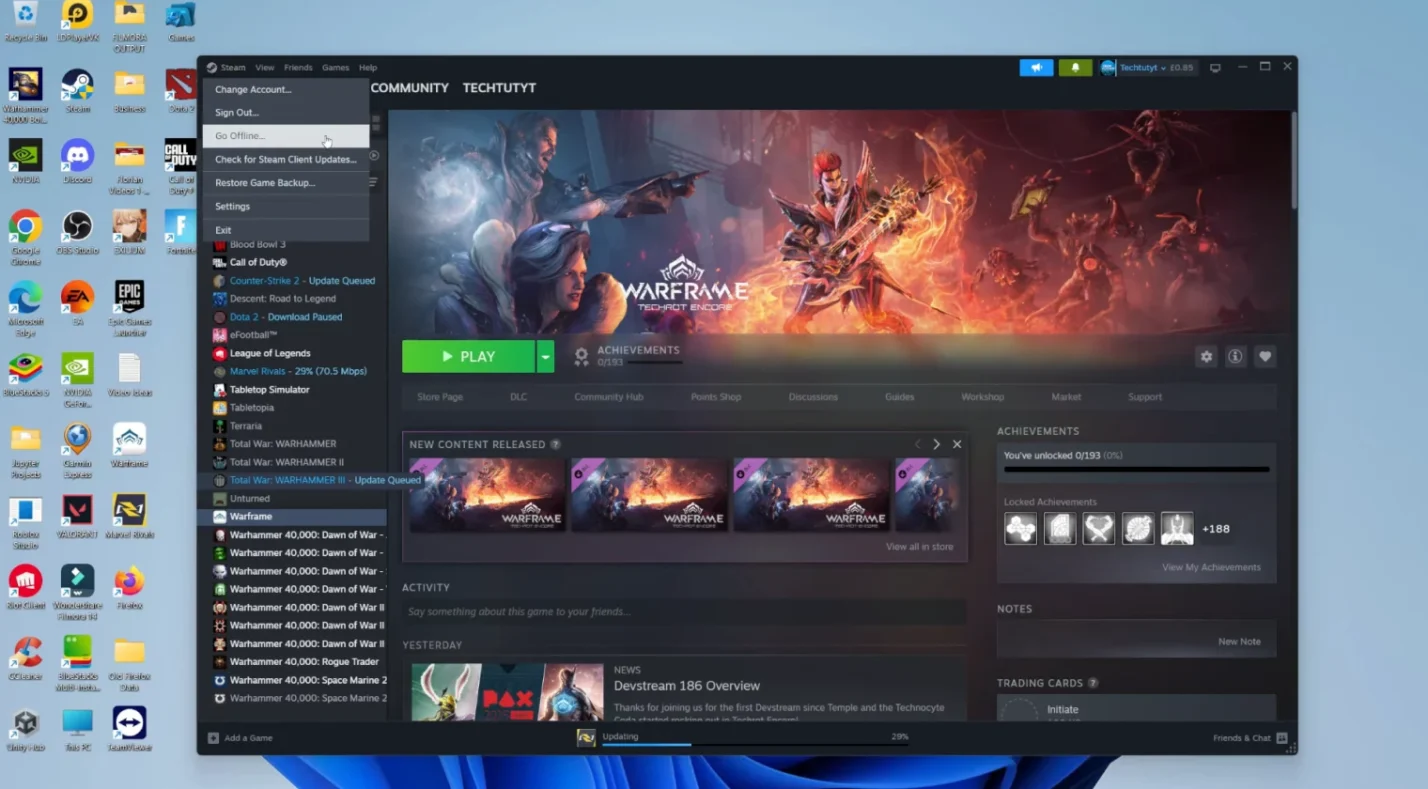

Can You Play Steam Games Offline Complete Guide Eneba Can You Play Steam Games Offline How To Enable Steam Offline Mode 760 420. HOW TO PLAY STEAM GAMES OFFLINE 2026 FULL GUIDE YouTube . Steam 2026 4 New Free To Play Games Available Now AllKeyShop Com Showcase Steam Free Games 2026 Indie F2p Card Roguelike Sci Fi. The Most Played Games On Steam For 2026 So Far Cheat Code Central Most Played Games Steam 2026 2048x1167 . Steam March 2026 Client Update Adds Hardware Specs To User Reviews Steam Client Mar 2026
#2 Gallery can steam games play offline


Offline Free To Play Steam Games On Pc Infoupdate Org . HOW TO PLAY STEAM GAMES OFFLINE WITHOUT INTERNET 2026 FULL GUIDE . Free Open World Steam Games Worth Exploring 2026 Edition Image. Valve Has Revealed All Steam Sale Event Dates For 2026 Steam Tererowa Game Rant . Steam Offline Activation For Free Has More Than 1000 Games ElaKiri Screenshot 2023 02 20 130213 Png.197807
#3 Gallery can steam games play offline




Steam Drops Free Download For Gorgeous New 2026 Game . Best Free Games To Claim Right Now 2026 Steam PlayStation Xbox More May 2026 Free Games Feature Image . Best Free Offline Game On Steam Top Picks For 2024 Sddefault . TOP 5 Free To Play Offline Games On Steam With Download Links Part . January 2026 S Top Selling New Steam Games Revealed 08418405 04a2 47eb B48b 1500x843
#4 Gallery can steam games play offline



Free Indie Steam Games You Should Play In 2026 Image. Best Solo Offline Steam Games That You Can Play Right Now GameSkinny Best Solo Offline Steam Games That You Can Play Right Now 04 . 10 Best Offline Games You Should Play In 2026 Gaming Net Best Offline Games You Should Play In 2025 7 . How To Go Offline On Steam Complete Guide To Invisible Mode Offline Airtable 1.webp. Steam Next Fest February 2026 Edition Indie Game Trailers All Ages Steam February Indie Game Trailers All Ages Of Geek
#5 Gallery can steam games play offline



Best Free Co Op Steam Games 2026 Team Up Without Paying A Cent Image. Best Indie Multiplayer Games On Steam 2026 Edition LRDev Games 1.Best Indie Multiplayer Games On Steam.webp. The Top 2026 Games By Steam Wishlists By Rhys Elliott 688cc700 D4c5 483d 8b01 1606x902 . Steam Next Fest February 2026 The 22 Best Game Demos The Best Steam Next Fest Demos 2026 The Punished Backlog Order 2 768x415 . What Are The Best Free Steam Games You Can Play Now Steam Logo In Forest
#6 Gallery can steam games play offline



Best Solo Offline Steam Games That You Can Play Right Now GameSkinny Best Solo Offline Steam Games That You Can Play Right Now 07 . The 25 Best Free Steam Games To Play In 2026 GamesRadar . Steam Next Fest 2026 And Beyond All The Dates Details And Everything. SteamDeck Games To Play In 2026. Top 100 Most Followed Steam Games With A 2026 Release Date GameGrin Image 2026 01 11 195824230
#7 Gallery can steam games play offline


Steam 2026 4 New Free To Play Games Available Now AllKeyShop Com Featured Steam Free Games 2026 Indie F2p Card Roguelike Sci Fi. Biggest Steam Next Fest Demos You Can Play This Week February 2026 Steam Next Fest February 2026 Edition Official Trailer 0 1 Screenshot 2 . Steam Starts 2026 With 4 New FREE Games No Strings Attached Image Psd 37 . Free Indie Steam Games You Should Play In 2026 Image. How To Play Steam Games Offline Driver Easy St2