Embark on a creative journey to master Roblox animations. This comprehensive guide provides busy US gamers with practical, step-by-step instructions to bring their Roblox characters and models to life. Discover how to navigate Roblox Studio's animation editor, understand keyframing principles, and apply professional tips to make your creations stand out. Whether you're a beginner seeking a new hobby or an experienced builder looking to enhance your games, this resource covers everything from basic movements to complex sequences. Learn about popular animation trends, optimize your workflow for efficiency, and connect with the thriving Roblox creator community. Unleash your artistic potential and elevate your Roblox experience, all while balancing your everyday commitments. This month, social and creative game development remains a top trend, making animation a highly relevant skill for the modern gamer.
What is the easiest way to start creating Roblox animations as a beginner?
The easiest way to start creating Roblox animations as a beginner is by utilizing Roblox Studio's built-in Animation Editor. Begin with a pre-made Roblox character and focus on simple movements like a wave or a jump. This visual tool allows you to manipulate character limbs and set keyframes without needing to write any code initially, providing a straightforward entry point into the world of Roblox animation.
How do I rig a custom character or model for animation in Roblox Studio?
To rig a custom character or model for animation in Roblox Studio, you'll need to use Motor6D joints to connect its various parts. Select your model, then use the 'Rig Builder' plugin in the 'Plugins' tab to automatically generate a basic rig, or manually insert Motor6D instances. Ensure each Motor6D has a 'Part0' and 'Part1' assigned to connect the specific body parts, creating a skeletal structure that the Animation Editor can then manipulate.
What are keyframes and how do they work in Roblox animation?
Keyframes are fundamental to Roblox animation; they are specific points in time where you define the pose or position of your character's parts. The Animation Editor then automatically calculates and creates the smooth transitions, or 'tweens,' between these keyframes. By strategically placing keyframes along your timeline and adjusting limb positions at each point, you effectively choreograph your character's entire movement sequence.
How can I ensure my Roblox animations play smoothly and look natural?
To ensure your Roblox animations play smoothly and look natural, focus on proper timing and 'tweening.' Utilize the 'ease in' and 'ease out' options within the Animation Editor to make movements start and end gradually. Add more keyframes for subtle, detailed adjustments rather than relying on just a few broad poses. Observing real-world movements and applying principles like anticipation and follow-through can also significantly enhance realism.
What is the best way to export and use my Roblox animations in a game script?
The best way to export and use your Roblox animations in a game script is to save them directly to Roblox via the Animation Editor's 'File' > 'Save to Roblox' option. This generates a unique 'rbxassetid' for your animation. Then, in a script, create an 'Animation' instance, set its 'AnimationId' property to your asset ID, and use the 'Animator' object on your character's Humanoid to 'LoadAnimation' and 'Play' it, triggering the animation in-game.
Are there any common mistakes beginners make when creating Roblox animations?
Yes, common mistakes beginners make when creating Roblox animations include improper rigging, which causes parts to detach or not move. Another is creating stiff, robotic movements due to too few keyframes or neglecting to use ease-in/ease-out transitions. Forgetting to set animation priorities can also lead to conflicts with default Roblox animations, resulting in unexpected behavior. Regularly testing and iterating on your animations is key to avoiding these pitfalls.
How can I use external software like Blender to create animations for Roblox?
You can use external software like Blender to create animations for Roblox by first modeling and rigging your character in Blender, then animating it. Once complete, export your animated model as an FBX file. In Roblox Studio, you can import this FBX, and Studio will usually generate an 'Animation' object from the imported animation data. This allows you to leverage Blender's advanced animation features for more complex or stylized movements before bringing them into your Roblox game.
Are you a dedicated gamer who, despite a busy schedule balancing work and family, finds immense joy and relaxation in virtual worlds like Roblox? Do you ever look at the incredible games and custom characters on the platform and wish you could bring your own creations to life with dynamic movements and expressive actions? You're not alone. Many US gamers, part of the 87% who regularly engage with their passion and often spend 10+ hours a week in games, seek creative outlets that fit into their demanding lives. Learning how to create Roblox animations isn't just about technical skill; it's about unlocking a new dimension of creative expression, connecting with a vibrant community, and enhancing your gaming experience in a truly unique way. This guide is designed for you: the adult gamer who values skill-building, social play, and getting maximum value from your leisure time, without all the hype.
Forget the intimidating learning curves or the need for expensive software. Roblox Studio provides a powerful, free, and surprisingly intuitive environment for animation. We'll walk through everything from the absolute basics of getting started to more advanced techniques that will make your characters move with personality and polish. By the end of this article, you'll have a clear roadmap to turning your static models into engaging, animated characters, ready to impress your friends or populate your next game. Let's dive into the world of Roblox animation and transform your creative vision into captivating motion!
What are Roblox Animations and Why Should Gamers Create Them?
Roblox animations are sequences of movements that bring characters, props, and environmental elements within Roblox games to life. Think of them as the digital puppetry that dictates how a character walks, jumps, emotes, or performs a special attack. For gamers balancing life and play, creating animations offers a fantastic creative escape and skill-building opportunity. It’s a way to personalize your game development, make your avatars stand out, or even craft engaging cinematic sequences. With mobile gaming dominating and social play trending this month, unique animations can significantly boost player engagement and help your creations get noticed within the vast Roblox ecosystem.
What Tools Do I Need to Start Animating in Roblox Studio?
The beauty of Roblox animation is its accessibility. All you truly need is Roblox Studio, which is a free and powerful development platform. Once inside Studio, the primary tool for animation is the built-in Animation Editor. You'll also need a character model or any rig you wish to animate, typically a Humanoid or a custom Rigged MeshPart. Understanding the basics of Roblox Studio navigation and object manipulation will make your animation journey much smoother. No expensive third-party software is required to get started, making it a budget-friendly way to level up your creative skills.
How Do I Prepare My Character or Model for Animation?
Before you can animate, your character or model needs to be properly set up, or 'rigged.' For character animations, this usually means ensuring your model has a Humanoid object and a hierarchy of parts connected by Motor6D joints. These joints act like bones in a skeleton, allowing individual parts of the character to move independently. If you're using a pre-made Roblox character, it's likely already rigged. For custom models, you'll need to manually add Motor6Ds to connect parts or use the Rig Builder plugin in Roblox Studio to create a basic rig. A well-rigged model is the foundation for smooth, natural-looking animations.
What Are the Basic Steps for Creating an Animation in Roblox Studio?
Creating an animation in Roblox Studio follows a straightforward process:
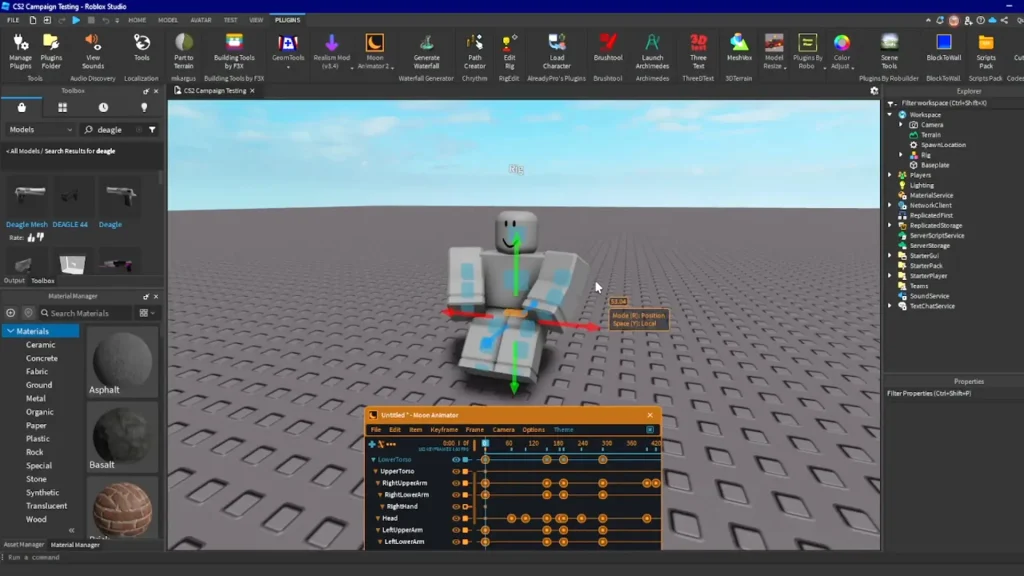
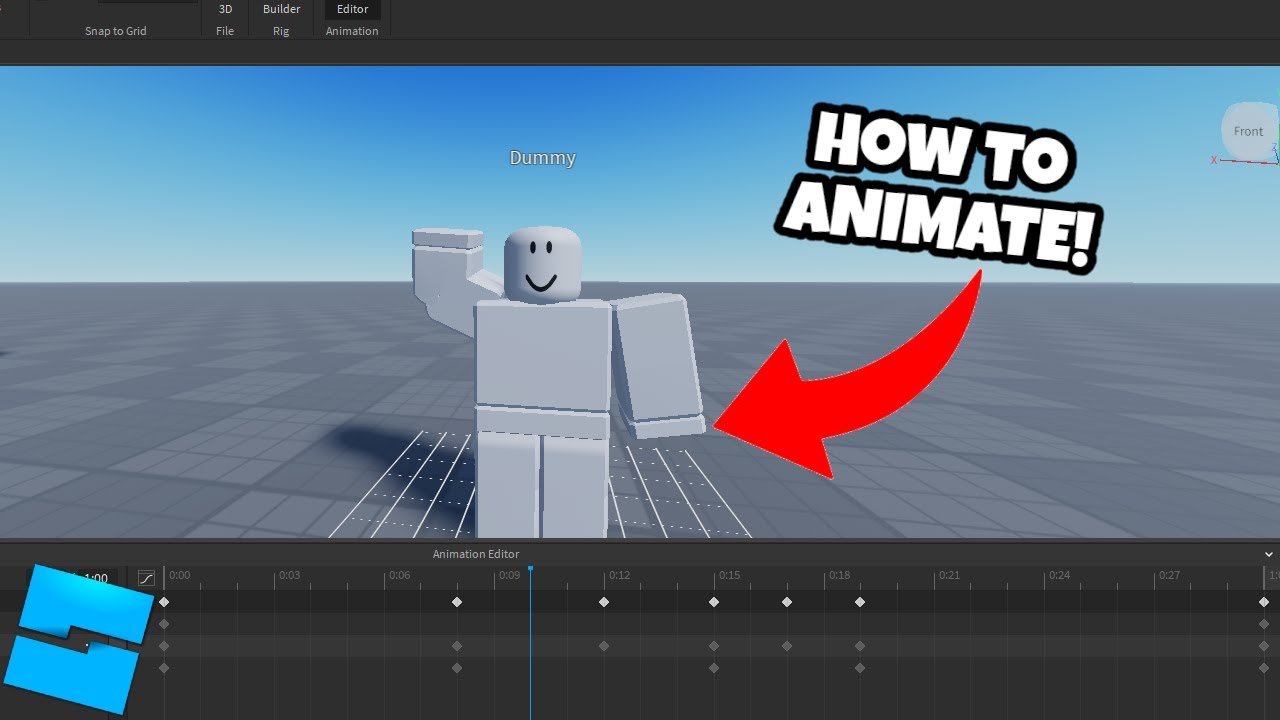
- Open the Animation Editor: Select your rigged model in the Explorer window, then go to the 'Plugins' tab and click 'Animation Editor.'
- Create a New Animation: In the Animation Editor window, click 'File' > 'New' and give your animation a descriptive name.
- Set Keyframes: Move your character's parts (limbs, torso, head) to desired positions at different points in time. Each position you set is called a 'keyframe.' The Animation Editor automatically interpolates (fills in the movement between) these keyframes.
- Adjust the Timeline: Drag the timeline scrubber to advance time and create new keyframes for subsequent movements.
- Test Your Animation: Use the 'Play' button in the Animation Editor to preview your work and make adjustments as needed.
- Looping and Prioritization: Decide if your animation should loop (e.g., a walk cycle) and set its priority (e.g., 'Core' for basic movement, 'Action' for attacking).
These fundamental steps form the core of any animation you'll create.
How Can I Make My Roblox Animations Look More Realistic or Smooth?
Achieving realistic and smooth animations often comes down to refining your keyframes and understanding animation principles:
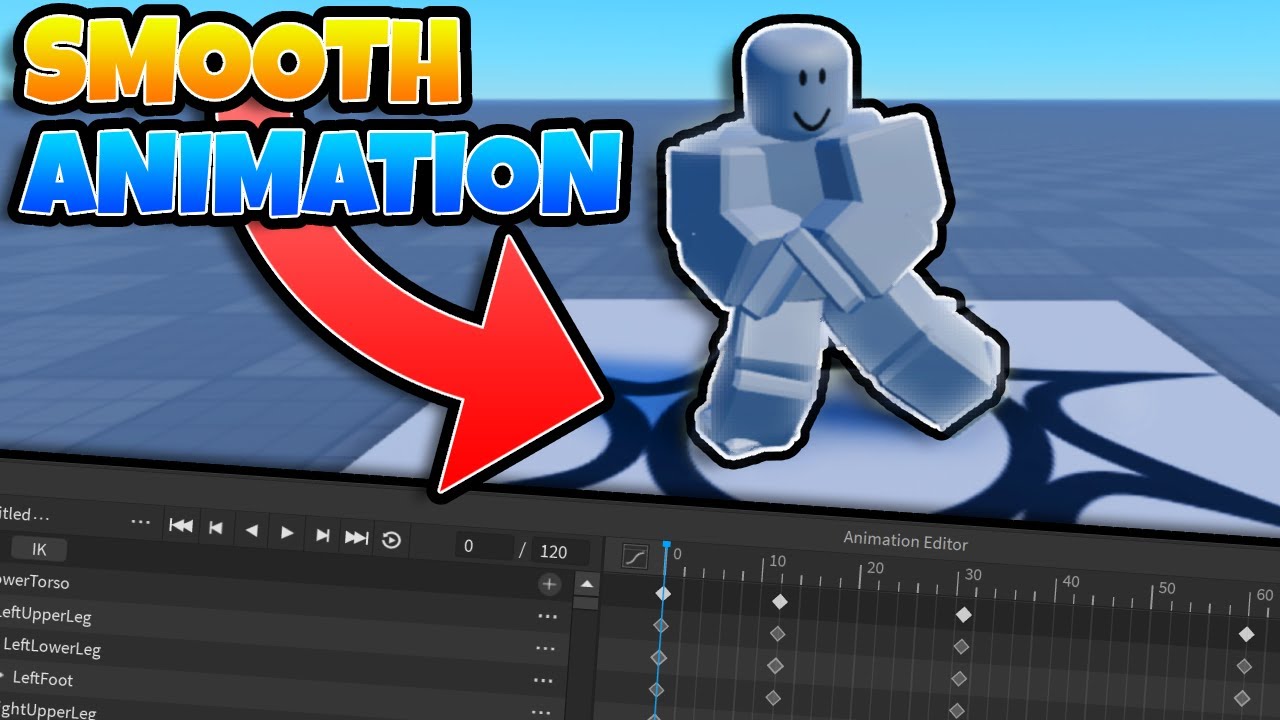
- Ease In/Ease Out: Adjust the 'tweening' (interpolation) properties of your keyframes to make movements start and end gradually, rather than abruptly. This adds a natural flow.
- More Keyframes, Subtle Adjustments: Sometimes, adding more keyframes with smaller, nuanced changes can create smoother transitions and more detailed movements.
- Anticipation and Follow-Through: Incorporate slight preparatory movements before a main action (anticipation) and residual movements after (follow-through) to add weight and realism.
- Reference Real-World Motion: Observe how people or objects move in real life. Video references can be incredibly helpful for understanding timing and posing.
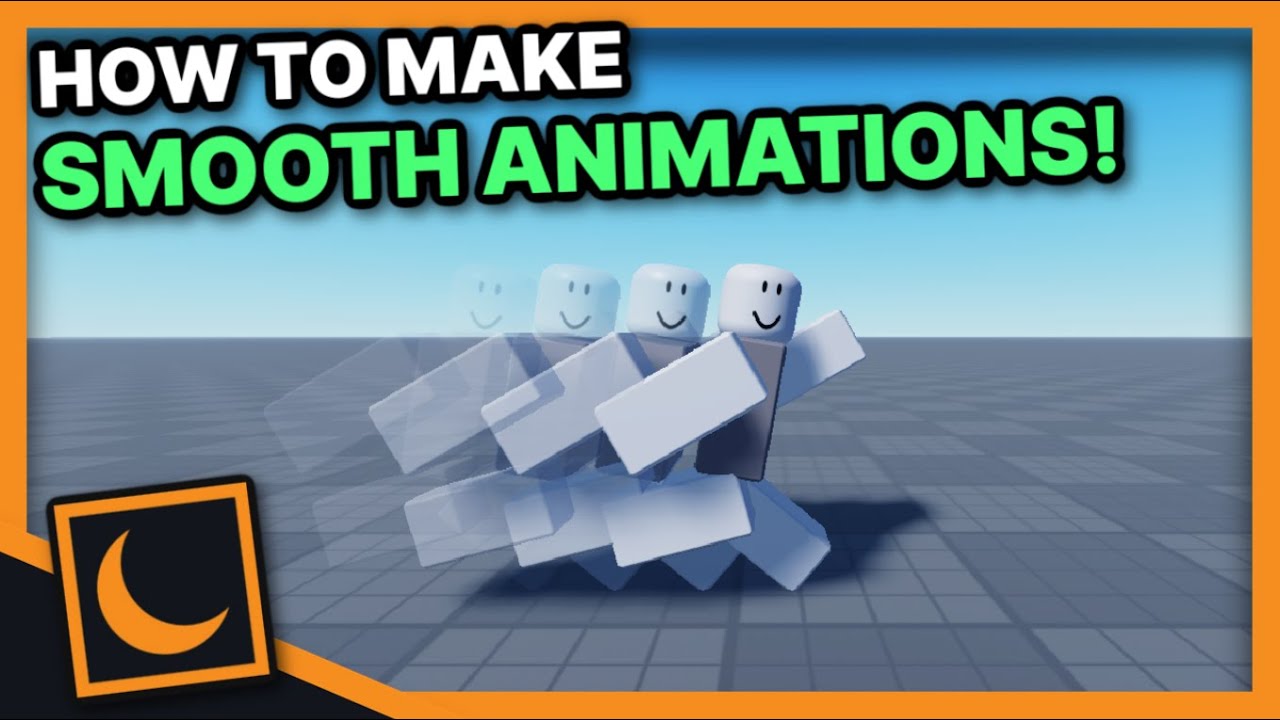
- Use the Graph Editor: For advanced control, the Animation Editor's Graph Editor allows you to fine-tune the curves of your movements, providing granular control over speed and timing for individual joints.
Practice and keen observation are your best allies here.
What Are Some Common Animation Challenges and How Do I Fix Them?
Gamers often face a few hurdles when animating:
- Rigging Issues: If parts of your model don't move or move incorrectly, double-check your Motor6D connections and ensure they're properly parented.
- Jumpy Animations: This usually means not enough keyframes or poor tweening. Add more intermediate keyframes or adjust ease-in/ease-out settings.
- Limited Movement Range: Ensure your character's joints aren't constrained too tightly by collisions or other physics. Sometimes, moving the model slightly off the ground during animation can help.
- Animation Clipping: Parts of your character passing through itself or other objects. Adjust keyframe poses to prevent intersections.
- Overwriting Default Animations: When scripting, ensure your custom animations are loaded with a higher priority than Roblox's default character animations if you want them to take precedence.
Many issues can be solved by patiently reviewing your keyframes and checking your model's rigging.
How Do I Save and Publish My Roblox Animations for Others to Use?
Once your animation is complete and you're happy with it, you need to save and publish it:
- Save to Roblox: In the Animation Editor, click 'File' > 'Save to Roblox.' This uploads your animation to the Roblox platform and gives it a unique Asset ID.
- Get the Asset ID: After saving, the Animation Editor will provide you with the Asset ID. Copy this ID.
- Integrate into Scripts: You'll use this Asset ID in your game scripts to play the animation. Typically, an 'Animation' instance is created, its 'AnimationId' property is set to your Asset ID, and then an 'Animator' object on a Humanoid loads and plays it.
- Sharing: Animations saved to Roblox can be made public, allowing other creators to use them in their games, expanding your reach within the community.
Remember, properly saving and referencing your animation's Asset ID is crucial for it to function in your game.
Can I Use Motion Capture or External Tools for Roblox Animations?
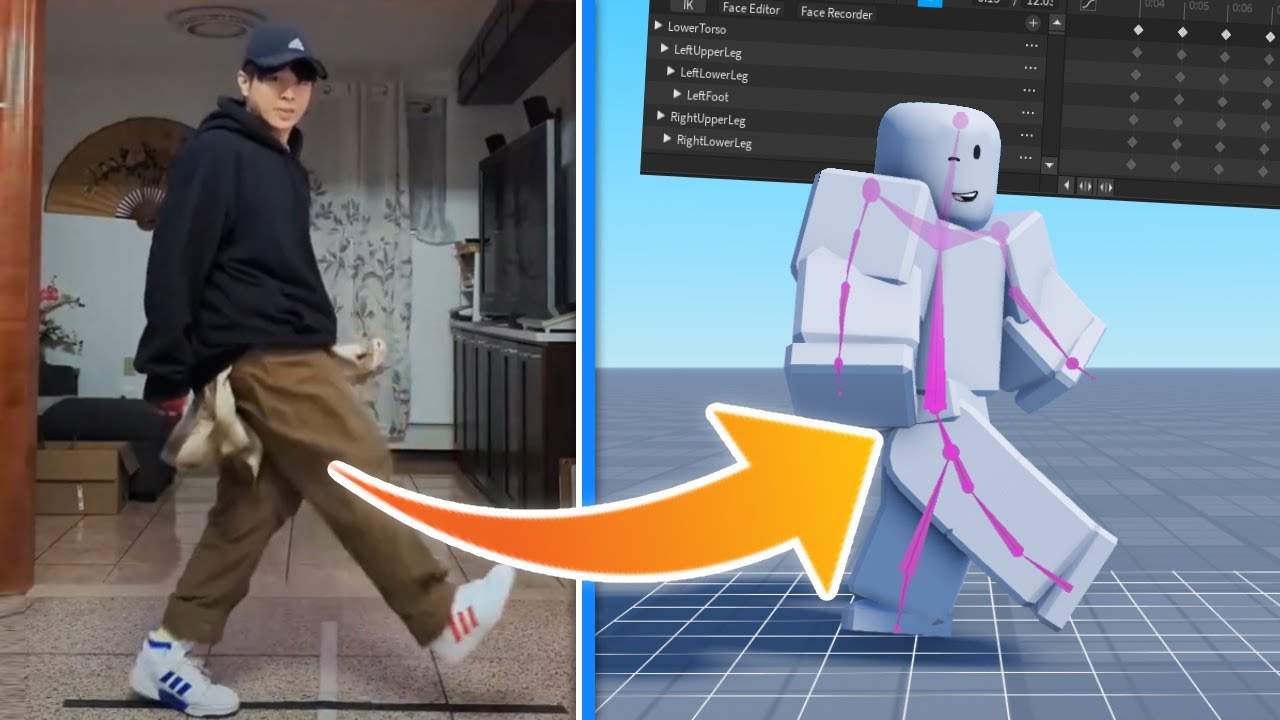
Absolutely! While Roblox Studio's Animation Editor is robust, many advanced creators integrate external tools and techniques. Motion capture (mo-cap) can be used to record real-world movements and import them into Roblox Studio, often through plugins or custom importers that translate external animation data (like FBX files) into the Roblox format. Software like Blender is also popular; animators create complex animations there, then export them as FBX to import into Roblox Studio, which can then convert them to Roblox animation objects. This allows for highly detailed and fluid animations that might be more challenging to achieve purely within Studio, catering to gamers who enjoy dabbling in 3D modeling and advanced software.
How Can I Integrate My Animations into a Roblox Game Script?
Integrating animations into your game requires basic scripting knowledge. Here's a common approach:
local character = script.Parent
local humanoid = character:WaitForChild("Humanoid")
local animator = humanoid:WaitForChild("Animator")

local animation = Instance.new("Animation")
animation.AnimationId = "rbxassetid://YOUR_ANIMATION_ASSET_ID" -- Replace with your actual ID

local animTrack = animator:LoadAnimation(animation)

-- To play the animation:
animTrack:Play()

-- To stop the animation:
-- animTrack:Stop()
You can then trigger animTrack:Play() based on player input, game events, or proximity to objects. This fundamental script forms the basis for bringing your character movements to life within a dynamic game environment, crucial for immersive gameplay.
Are There Ways to Monetize My Roblox Animations?
For entrepreneurial gamers, yes, there are several ways to potentially monetize your Roblox animation skills. Firstly, you can create and sell custom animation packs on the Roblox marketplace for Robux. Many game developers are constantly looking for high-quality, unique animations for their characters and props. Secondly, you can offer your services as a freelance animator to other Roblox developers who need custom work for their games. As the Roblox economy continues to grow, with in-game purchases and creator revenue trending upwards this month, skilled animators are in high demand. Building a portfolio of impressive animations is key to attracting clients and earning from your creative talents.
Creating animations in Roblox Studio offers a rewarding blend of technical skill and artistic expression. It's an accessible way for gamers to deepen their engagement with the platform, personalize their experiences, and even build valuable creative skills that can extend beyond Roblox. From basic walk cycles to complex combat moves, the power to animate is right at your fingertips. So go ahead, open Roblox Studio, and start bringing your imagination to life. What's your biggest gaming challenge or creative project you want to tackle next? Comment below!
FAQ Section
Q: Do I need to be a coding expert to create Roblox animations?
A: No, you don't need to be a coding expert. The Roblox Animation Editor is primarily a visual tool. While some basic scripting is needed to play animations in a game, you can learn the fundamentals quickly without deep coding knowledge.
Q: Can I animate anything in Roblox, or just characters?
A: You can animate almost any model with a proper rig. While characters are common, you can animate doors opening, machines moving, special effects, or even environmental elements, as long as they have interconnected parts via Motor6Ds.
Q: What are the best practices for organizing my animations in Roblox Studio?
A: It's best to store your Animation objects within a logical hierarchy in your game, often in ReplicatedStorage or ServerStorage, and name them clearly. This makes them easy to find and reference in your scripts, promoting an organized workflow.
Q: How long does it typically take to learn Roblox animation?
A: The basics can be grasped in a few hours with a good tutorial. Becoming proficient and creating smooth, complex animations takes practice, often weeks or months of consistent effort. It's a continuous learning process.
Q: Are there free resources to help me learn more about Roblox animation?
A: Yes, Roblox's official Creator Documentation is an excellent starting point. YouTube also hosts countless free tutorials from experienced creators. Joining Roblox developer forums and Discord communities can also provide peer support and tips.
Q: What are the common pitfalls beginners face when animating?
A: Common pitfalls include improper rigging, making animations too stiff (lack of ease-in/ease-out), ignoring animation priorities causing conflicts, and not thoroughly testing animations in-game before publishing. Patience and iterative refinement are key to overcoming these.
Learn to create Roblox animations easily. Understand Roblox Studio animation tools. Get tips for smooth, realistic character movements. Discover how to publish and share animations. Enhance your Roblox game development skills.
35


How To Make Animations In Roblox Studio FULL TUTORIAL YouTube . Roblox Studio Tutorial How To Create Custom Player Animations YouTube . Roblox Animation Unleash Your Creativity . Making Roblox Animations Your Creative Journey . How To Make Custom Player Animations In Roblox Studio 800x450


How To Make An Animation In Roblox Animation 1 YouTube . Animating Two Rigs In Roblox Studio A Simple Guide . How To Create Tools And Animate Them TUTORIAL Community Tutorials 2 690x400 . Unlocking Roblox Animation Power With Moon Animator Up To Date 2026 . How To Make Animations In Roblox Studio YouTube



How To Make Animations In Roblox Studio For Beginners A Quick User 282 Cover. Tutorial How To Create Custom Running Animations Roblox Studio Lite . Making Roblox Animations Your Creative Journey . How To Make Your Own Animation Roblox Studio At Darlene Whitely Blog . Making Roblox Animations Your Creative Journey Image 11 1536x864


Unlocking Roblox Animation Power With Moon Animator Up To Date 2026 . How To CREATE Custom R6 Animations IN Roblox Studio YouTube . Making Roblox Animations Your Creative Journey . Unlocking Roblox Animation Power With Moon Animator Up To Date 2026 . How To ANIMATE In ROBLOX STUDIO 2023 YouTube


How To Make SMOOTH ANIMATIONS Roblox Studio 2023 YouTube . How To Make CUSTOM ROBLOX ANIMATIONS Roblox Studio Tutorial YouTube . How Export Animations In Roblox Studio Make Animations In Roblox . Animations Blender To Roblox Made Easy . Animate Your Roblox Avatar In Blender


Tutorial How To CREATE Custom R6 Animations IN Roblox Studio 3D Image 12 2048x1152 . I Animate R Gganimate R Animation HJEGK . Making Roblox Animations Your Creative Journey . Unlocking Roblox Animation Power With Moon Animator Up To Date 2026 SL1500 . How To Create An Animation In Roblox Animation Editor 2023 Guide How To Create An Animation In Roblox Animation Editor 480x271


Unlocking Roblox Animation Power With Moon Animator Up To Date 2026 . How To Make Animation Bundles ROBLOX NEW Tutorial YouTube . How To Make Animations Play In Game ROBLOX STUDIO TUTORIAL YouTube . Animate Your Dreams Roblox Animation Guide How To Make Animations On Roblox . How To Record Make EASY ANIMATIONS Roblox Studio Live Animation